Troubleshooting
Warp crashes upon opening the game.
- Open the game first.
Website unreachable. / PowerShell flashes but download does not begin. / Loader instantly closes.
-
First, apply all (non-preview) Windows updates and reboot.
-
If the first step did not fix it, install Cloudlare DNS.
-
Activate Cloudlare DNS by going into the tray and clicking on the cloud.
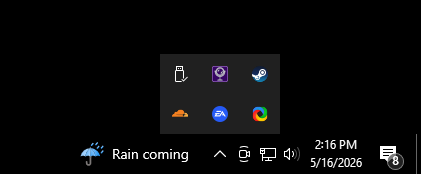
- Then make sure this switch is on.

- This will fix your DNS settings and allow the download to proceed.

Above image is what it’s supposed to look like.
After loading a white screen appears and then closes. / Warp crashes right after loading.
- Make sure you are on the latest (non-preview) Windows update.
- If using the driver version of the Warp menu ensure that real time protection and vulnerable driver blocklist are disabled.
The overlay makes my entire screen blury.
- Turn off any other overlays.
"We couldn’t create the data directory".
- Search for ‘Edit the system environment variables’.
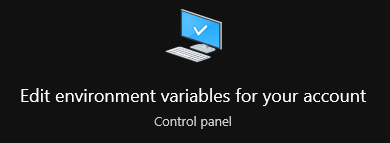
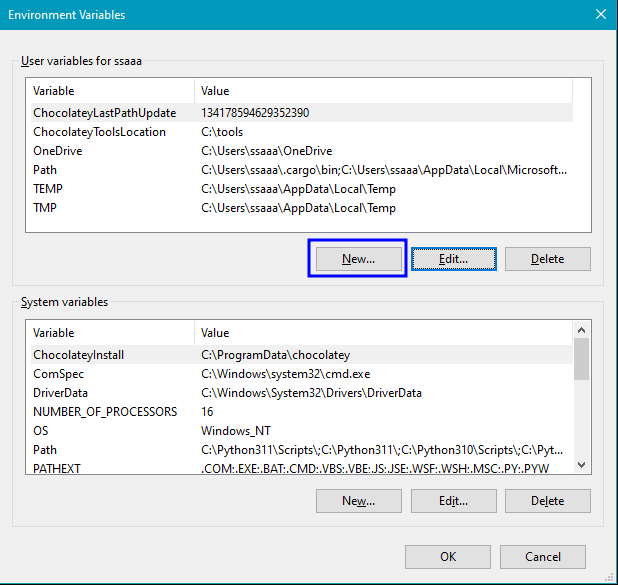
- Press on the TOP “New” button.
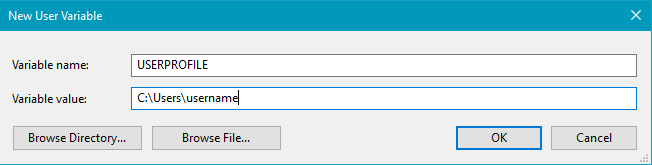
- Put ‘USERPROFILE’ for the top section and ‘C:\Users\’ followed by your Windows username in the bottom section then click “OK”.
- Reboot.
Warning
This is a workaround for a Windows bug which makes all newly created Windows profiles share data with the original Windows profile. If using the Destiny 2 profile method it may be wise to reinstall or use our spoofer instead.
Change_Windows_Edition.cmd failed to change the Windows edition.
-
Make sure Windows is on the latest update.
-
Run the following command using powershell then select option [8] Troubleshooting:
-
Reboot then try running the script again.
-
If it still fails open a support ticket.
Loader prompts for reboot after already rebooting.
-
Ensure Windows is up to date.
-
Run the following commands using administrator powershell.
DISM /Online /Cleanup-Image /RestoreHealth

sfc /scannow

DISM /Online /Disable-Feature /FeatureName:Microsoft-Hyper-V-All /NoRestart
DISM /Online /Disable-Feature /FeatureName:VirtualMachinePlatform /NoRestart
DISM /Online /Disable-Feature /FeatureName:HypervisorPlatform /NoRestart

bcdedit /set hypervisorlaunchtype off
-
Reboot.
-
Run the following commands using administrator powershell.
DISM /Online /Enable-Feature /FeatureName:Microsoft-Hyper-V-All /All /NoRestart
DISM /Online /Enable-Feature /FeatureName:VirtualMachinePlatform /All /NoRestart
DISM /Online /Enable-Feature /FeatureName:HypervisorPlatform /All /NoRestart

bcdedit /set hypervisorlaunchtype auto

mountvol Z: /S

rm Z:\EFI\Microsoft\Boot\bootmgfw.original.efi
rm Z:\EFI\Microsoft\Boot\Warp-V.dll

bcdboot C:\Windows /s Z: /f UEFI

mountvol Z: /D
- Reboot.
Loader should work now, if it doesn’t open a support ticket.