Getting Started
This guide details how to setup the Warp menu. We hope you like it! 
Info
Please check out our FAQ first, if you have any issues following this guide head over to support.
Requirements
Secure Boot disabled
- Ensure that ‘Secure Boot’ is disabled in your system BIOS.
TPM disabled
- Ensure that TPM is disabled in your system BIOS.
Warning
If both TPM and BitLocker are enabled, disabling TPM may cause data loss unless you have the BitLocker recovery keys.
While it is possible to “Continue” with TPM and/or BitLocker enabled, doing so may compromise security.
Windows Pro edition - FREE / NO REINSTALL REQUIRED
- Download Change_Windows_Edition.cmd.
- Double click Change_Windows_Edition.cmd.
- Select ‘Professional’ or ‘Enterprise’.
- Reboot.
- You now have Windows Pro, however it needs to be activated.
- To activate Windows run the following command using powershell:
- When prompted, select option [1] HWID.
Success
Congratulations, you have now have Windows Pro edition.
Hyper-V enabled
- Go into ‘Turn Windows features on or off’.

- Ensure the Hyper-V section looks like this and hit “OK”.
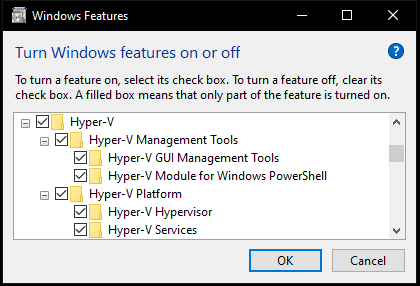
In some cases Hyper-V options will show a gray box instead of a checkmark.
- To fix this ensure that Virtualization / VT-x / VT-d / SVM / AMD-V / IOMMU are enabled in your system BIOS.
- Reboot to ensure the changes applied.
- DMA card with firmware
- 2 computers
- fuser (optional)
Download & Run
Register
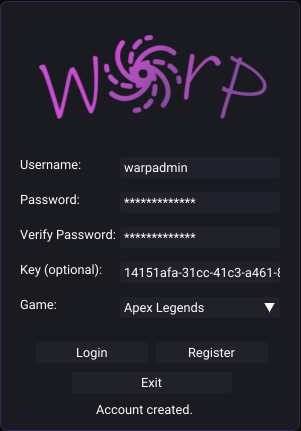
Login
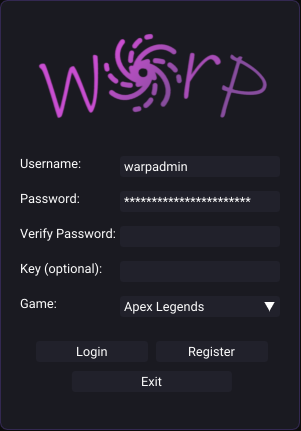
The Warp loader will save your credentials for your next login.
Loading
- Click “Yes” when prompted to reboot.
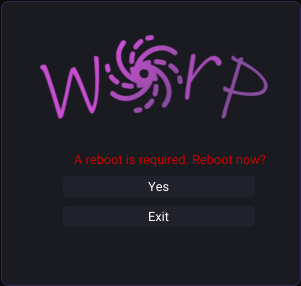
The reboot step is currently required again after every Windows shutdown/reboot.
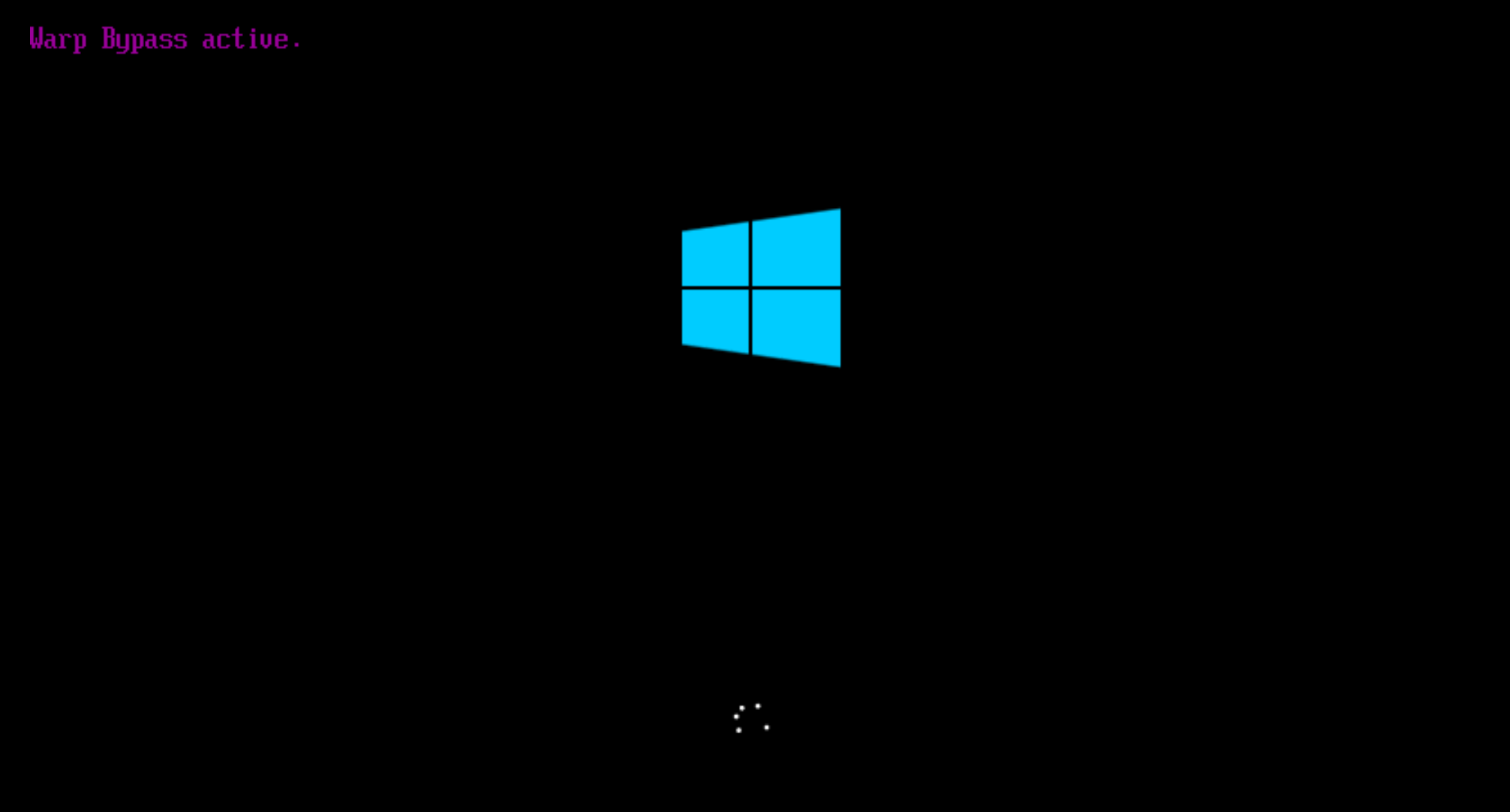
If you do not see ‘Warp Bypass active’ when booting after clicking “Yes” please verify the requirements again then open a support ticket.
- After rebooting, run setup.zip and login again.
No extra step is required.
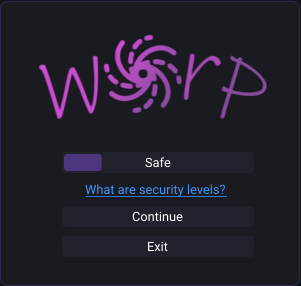
- Once you select your Security Level click on “Continue” to load the Warp menu!
No extra step is required.
- If you wish use a fuser, enable ‘Fuser Mode’ in the Settings tab of the menu.
Success
Congratulations, you now have access to the Warp menu!